AI UX design tools are software platforms that use machine learning to help designers research users, generate wireframes, build prototypes, test usability and improve accessibility. They don’t replace designers. They remove repetitive work so designers can spend more time on creative thinking and real user problems.
Every designer knows the feeling. The deadline is close, the stakeholder feedback keeps changing, and you still have interviews to summarize, screens to build and prototypes to test. This is exactly where AI UX design tools have started to make a real difference.
In this guide, you’ll learn what these tools are, how they work, where they help most, where they fall short and how to choose the right one for your team.

What Are AI UX Design Tools?
AI UX design tools are digital products that use machine learning, pattern recognition and generative technology to support parts of the user experience design process. Some tools generate screen layouts from a text prompt. Others analyze user behavior, summarize interview recordings or predict where people will look on a page.
Think of them as a very fast junior teammate. They can draft, sort, suggest and calculate in seconds, but they still need an experienced designer to guide the direction, judge the quality and make final decisions.
Most AI-powered UX design software falls into a few broad groups:
- Generative design tools that turn written prompts into wireframes or interface drafts
- Research and analysis tools that cluster feedback, find themes and build personas
- Prototyping tools that connect screens into clickable flows
- Testing and analytics tools that use heatmaps, session data and attention prediction
- Accessibility tools that flag contrast, text size and navigation issues
Why Designers Are Using AI in the UX Process
The appeal is simple: time and clarity. Traditional design work involves many manual steps, and each one takes hours. With UX design with AI, several of those steps shrink dramatically.
1. Faster first drafts. Instead of starting with a blank canvas, you start with something to react to. Editing a draft is almost always quicker than creating one from nothing.
2. Better use of research data. Teams often collect more user feedback than they can read. AI can summarize hundreds of survey answers or interview notes and point out recurring pain points.
3. Consistency at scale. When connected to a design system, an AI design assistant can help keep buttons, spacing, colors and typography aligned across dozens of screens.
4. Earlier problem detection. Attention prediction and automated usability checks can reveal confusing layouts before a single real user sees them.
5. Lower cost of experimentation. When prototypes are cheap to produce, teams can test more ideas and choose stronger solutions.
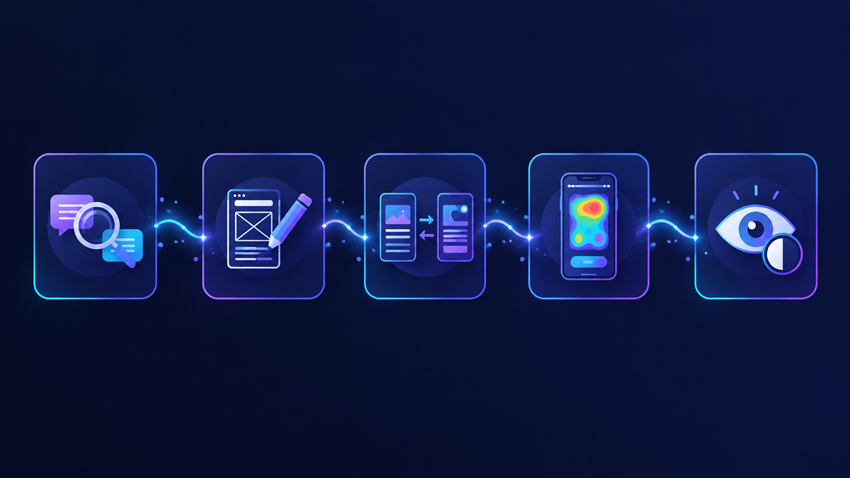
How AI UX Design Tools Support Each Stage of the Design Process
Discovery and User Research
Early research is where AI saves some of the most time. Transcription, tagging and theme detection used to take days. Now a research tool can convert an interview into text, highlight repeated frustrations and group them into themes.
Many tools can also draft user personas and user journey maps from your data. Treat these as starting points. Always check them against real conversations, because a persona built on weak data is just a polished guess.
Wireframing and Ideation
This is where generative features shine. You describe a screen, such as “a checkout page for a mobile skincare store with a guest option,” and the tool produces several layout variations. You pick the strongest direction and refine it by hand.
The benefit isn’t perfection. It’s momentum. Teams can compare layout options early instead of arguing over a single idea.
Prototyping and Interaction Design
Modern AI prototyping tools can connect static screens into a clickable flow, suggest transitions and even generate placeholder content that looks realistic. That makes it easier to run early tests and share ideas with developers and stakeholders.
Usability Testing and Analytics
Some platforms analyze heatmaps, scroll depth and click patterns to show where users hesitate. Others predict visual attention so you can see what draws the eye before launching. When paired with real user testing, this speeds up the cycle of testing, learning and improving.
Accessibility and Inclusive Design
Good UX should work for everyone. Automated checks can catch low color contrast, tiny tap targets, missing labels and confusing reading order. These checks don’t replace testing with people who use assistive technology, but they help you fix the obvious issues early.
Popular Types of AI UX Design Tools to Explore
Rather than chasing a single “best” product, it helps to understand the categories and pick based on your bottleneck.
| Category | What it helps with | Best for |
| Generative UI tools | Turning prompts into screens | Quick concepts and early ideas |
| Design platforms with built-in AI | Layout help, content, asset suggestions | Teams already working in a shared design file |
| Research assistants | Summaries, themes, personas | Researchers with large volumes of feedback |
| Attention and heatmap predictors | Pre-launch visual analysis | Landing pages and conversion-focused design |
| Accessibility checkers | Contrast and usability flags | Teams that need inclusive, compliant interfaces |
Well-known design platforms such as Figma, along with tools like Uizard, Visily and Maze, offer features in these areas. Product features change often, so check each provider’s current documentation before you commit.

Benefits and Limitations You Should Know About
A balanced view builds trust, so here is the honest picture.
Benefits
- Shorter design cycles and faster delivery
- Less repetitive work, such as resizing, naming and formatting
- Stronger data-backed decisions
- More room for testing multiple concepts
- Easier collaboration between designers, developers and product managers
Limitations
- AI doesn’t truly understand your users’ emotions or context
- Generated layouts can look generic or repeat common patterns
- Research summaries can miss nuance or misread sarcasm and cultural context
- Sensitive user data needs careful handling, so review privacy policies
- Over-reliance can weaken a team’s design thinking skills
The strongest teams use AI to speed up the work and keep human judgment in charge of the decisions that matter.
How to Choose the Right AI UX Design Tool
Before you subscribe to anything, work through these questions:
- What is your biggest bottleneck? Research, ideation, prototyping or testing? Choose a tool that solves that one first.
- Does it fit your current workflow? A tool that exports cleanly to your existing design files saves headaches.
- How does it handle data privacy? If you upload interviews or customer data, check how that information is stored and used.
- Can it respect your design system? Look for tools that follow your brand’s colors, fonts and components.
- Is the output editable? Always choose tools that give you full control to adjust layers, text and spacing.
- Can your team learn it quickly? A simple tool that gets used beats a powerful one that gets ignored.
Start with a free trial or a small pilot project. Measure the time saved and the quality of the output before rolling it out to the whole team.
Best Practices for Using AI in UX Design
- Write clear prompts. Include the user type, goal, device and tone. Specific input leads to more useful output.
- Keep users at the center. Validate every AI suggestion with real people.
- Edit with intention. Treat generated work as a draft, never a finished product.
- Document your decisions. Note which parts came from AI and which came from research, so your team can explain the reasoning.
- Stay ethical. Avoid biased personas, misleading patterns and the misuse of personal data.
- Keep learning. Tools evolve quickly, so follow product updates and design communities.
If you want more practical design guides and resources like this, learn more about our website and explore our latest articles. You can also click here to browse our UX and design library for templates, checklists and tutorials.
Frequently Asked Questions About AI UX Design Tools
What are AI UX design tools used for?
They’re used to speed up user research, create wireframes and prototypes, analyze behavior, test usability and improve accessibility.
Will AI replace UX designers?
No. AI handles repetitive tasks and generates options, but empathy, strategy, critical thinking and ethical judgment still come from human designers.
Are AI UX design tools good for beginners?
Yes. They can lower the barrier to entry by providing starting layouts and suggestions. Beginners should still learn core principles like hierarchy, usability and user research.
Can AI-generated designs be used in real projects?
They can be a strong starting point, but they should always be reviewed, customized and tested with real users before launch.
Are these tools safe for confidential projects?
It depends on the provider. Read the privacy and data-handling policies carefully, and avoid uploading sensitive information unless the terms are clear.
How do I get started?
Pick one task you do often, such as summarizing interviews or drafting wireframes, and try a tool built for that purpose on a small project.
Conclusion: Use AI to Design With More Confidence, Not Less Care
AI UX design tools are changing how teams research, create and test digital products. They help you move faster, explore more ideas and make better use of your data. But the best experiences still come from people who care about the person on the other side of the screen.
Start small. Choose one tool, test it on one real task and judge it by the time it saves and the quality it delivers. Keep your users at the center, review everything critically and let technology support your creativity instead of steering it.